
Pages
Edit website pages, including wording, sections, links, and the text search engines show.
Pages holds the website's individual pages: informational pages, landing pages, and anything else with its own address. Pages support drafts, live preview, and version history, so this is a forgiving place to work.
Update a page
Open Pages and search for the page by its title. Update the existing page rather than creating a copy.
Read the page as it is before editing. Then change only what needs to change.
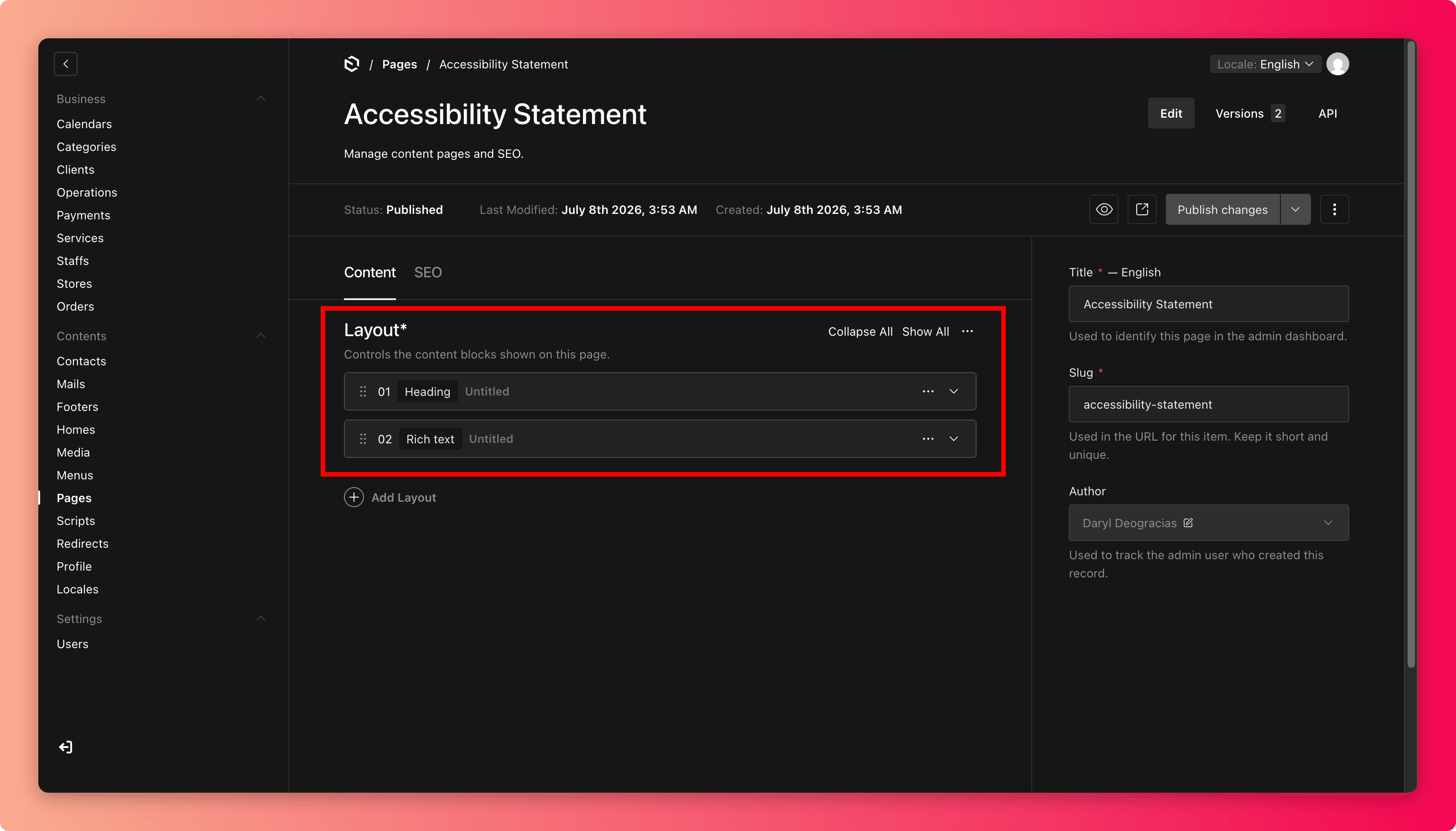
Check every link and button you touched. Each should point at a live, correct destination.
Save draft, preview on desktop and mobile, then Publish and open the live page.
Fields that trip people up
- Slug is the page's web address, the part after your domain, like
/pricing. Changing it breaks bookmarks, shared links, and any menu or footer entry pointing at the old address. If you must change it, update Menus & Footers in the same sitting. - Search preview text (title and description) is what Google and social shares display. Keep it accurate to the page, because a mismatch feels like a bait-and-switch to customers. Examples in Writing Tips.
Common mistakes
- Creating "Pricing v2" instead of editing "Pricing". Customers (and search engines) end up finding both.
- Publishing placeholder text ("TODO: add hours here"). Drafts exist so you never have to.
- Writing one giant paragraph. Break content into short sections with headings so it can be scanned on a phone.
- Forgetting the search preview after a big rewrite, so search results still describe the old page.
Wrong version published?
Pages keep version history. Open the page's Versions and restore the previous one. That is faster and safer than re-editing from memory.