
Media
Upload, replace, and describe the images and files used across the website.
Media is the shared library of images and files. Pages, the homepage, services, stores, and even emails all pull their images from here.
One image, many places
The same image can be used in several spots. Replacing an image in Media changes it everywhere at once. When in doubt, upload a new image and attach it where you need it, which touches nothing else.
Add an image
Open Media and search first, because the photo may already be in the library.
Upload the file. Give it a recognizable title ("Main branch storefront 2026", not "IMG_4821").
Write a short description (alt text): one line saying what is in the picture, for people using screen readers and for search engines.
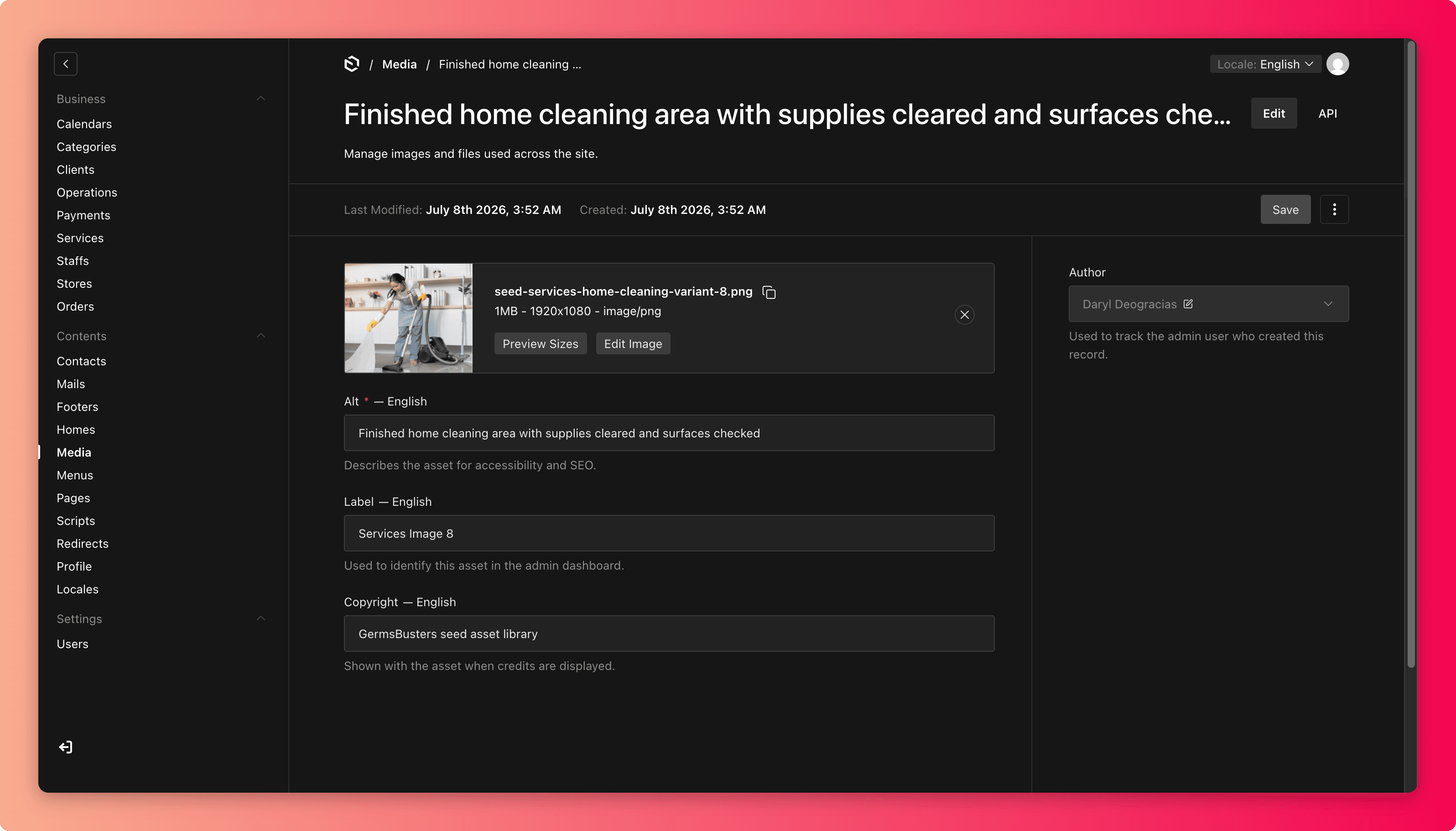
Attach the image where it is needed (the page, service, or store), then check that spot on the live site.
What makes a good image
- Sharp and honest. Real photos of your service, store, and results beat generic stock.
- Reasonably sized. Huge files slow the site down, especially on phones. If a photo comes straight off a camera, export a smaller web version first.
- No text baked in. Words inside images cannot be read by search engines or screen readers, and they do not translate. Put the words on the page instead.
Good description: Folded laundry stacked in a clean basket
Weak description: photo or image1
Common mistakes
- Replacing a shared image to fix one page and accidentally changing three others. Check where the image is used first, or upload a fresh one.
- Blurry, stretched, or badly cropped uploads. If it looks off in the preview, it will look worse on a customer's phone.
- Deleting an image that pages still use, leaving broken image frames on the live site. Detach it everywhere first.
- A library of files named
final_v3 (2).jpgthat nobody can find again. Name things at upload time.