
Save, Publish & Preview
The difference between a draft and a live change, and how to check your work before customers see it.
This is the single most useful thing to understand about the admin. Two minutes here saves hours later.
Draft vs. Published
Content areas such as Pages, Homes, Menus, Footers, and Contacts support drafts:
- Save draft stores your work privately. Customers still see the previous published version. You can come back tomorrow and continue.
- Publish makes your draft the live version. Customers see it immediately.
Other areas (Orders, Payments, Clients, Staffs, Users, Media, and Scripts) have a single Save button. There is no draft step: saving is live. That is why those areas get their own warnings in this guide.
How to tell which one you're in
Look at the buttons. If you see Save draft and Publish, you have a safety net. If you only see Save, your change takes effect the moment you click it.
Preview
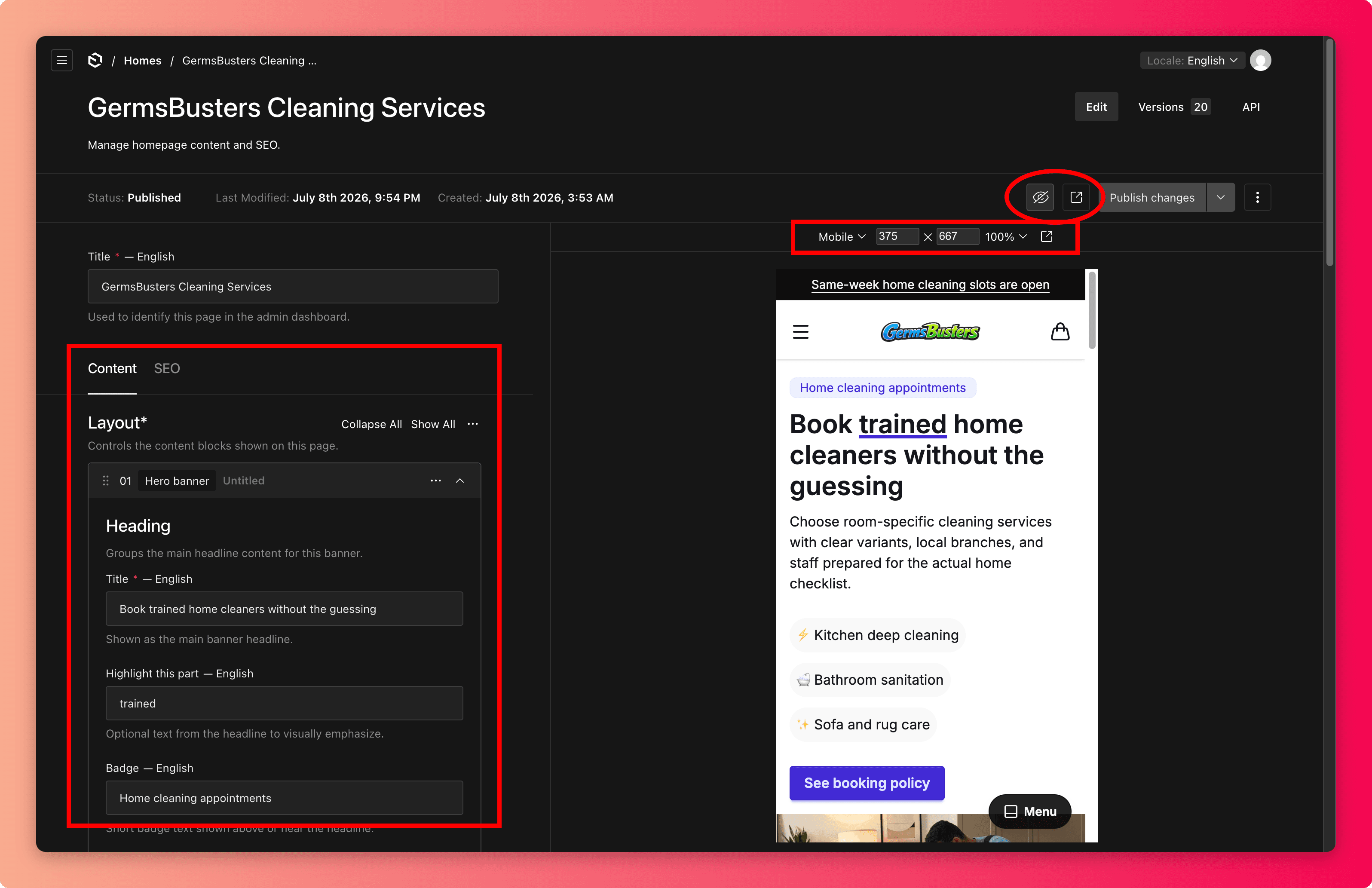
Pages and the homepage have a live preview, so you can see the change exactly as customers will, before publishing.
- Use the preview to check the page on desktop and mobile widths. Long paragraphs and wide images usually misbehave on mobile first.
- Check that buttons and links in the preview point where you expect.
Version history
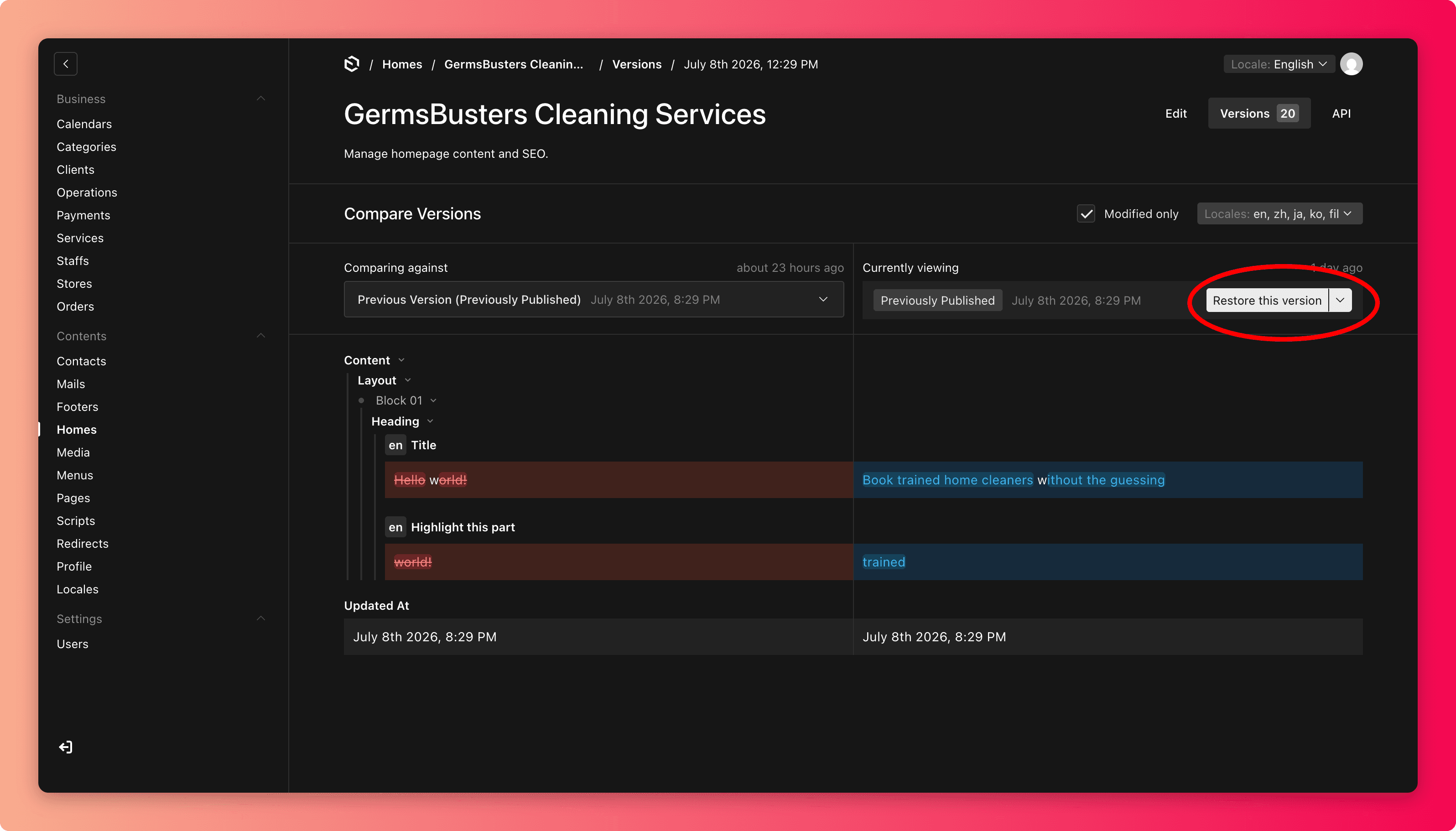
Draft-enabled areas keep a history of previous versions. If a published change turns out wrong, you can open the item's Versions and restore an earlier one instead of rebuilding it from memory.
Not everything can be undone
Version history covers content areas. It does not undo a deleted item, a changed order status, or an access change. For anything without a Publish button, double-check before saving.
A safe editing rhythm
- Open the item and read what is there before changing anything.
- Make your edit.
- Save draft (where available) and preview on desktop and mobile.
- Run through the publish checklist.
- Publish, then open the live website and look at the page as a customer.