
Your First Sign-In
Sign in, find your way around, and learn how the admin is organized.
This page is for your very first session in the admin. It takes about five minutes.
Signing in
Open the admin link you received in your invitation email and sign in with your email address and password.
If you forgot your password, use Forgot password on the sign-in screen. A recovery email arrives within a few minutes. Check spam if it does not.
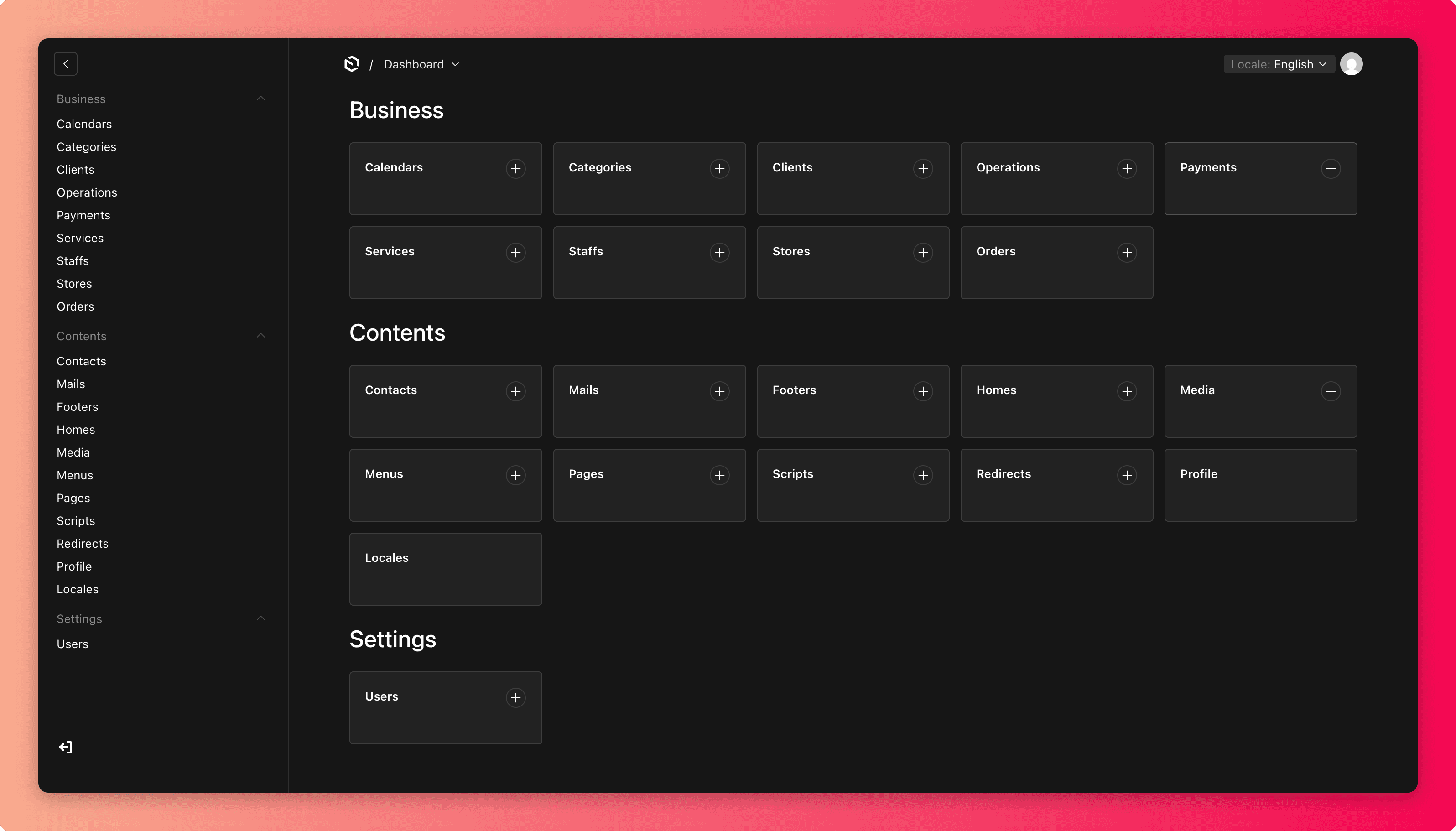
After signing in you land on the dashboard. The left sidebar is how you get everywhere.
Keep your account personal
Do not share your sign-in with anyone. If a colleague needs access, invite them with their own account instead (see Team Access). That way changes are always traceable to the right person.
How the sidebar is organized
The sidebar groups everything into three sections:
| Sidebar group | What lives there | Guide section |
|---|---|---|
| Business | Operations, Orders, Payments, Clients, Staffs, Services, Categories, Stores, Calendars | Daily Operations and Services & Booking |
| Contents | Pages, Homes, Menus, Footers, Media, Profile, Contacts, Locales, Mails, Scripts | Website Content and Settings |
| Settings | Users (your team's admin accounts) | Team Access |
A few names worth translating up front:
- Clients are your customers, the people who book and pay.
- Users are your team, the people who sign in to this admin.
- Homes is the homepage of your website.
- Operations is a live dashboard of today's work, not a list you edit.
Reading a typical screen
Most areas work the same way:
- Click the area in the sidebar to see a list of items with a search box at the top.
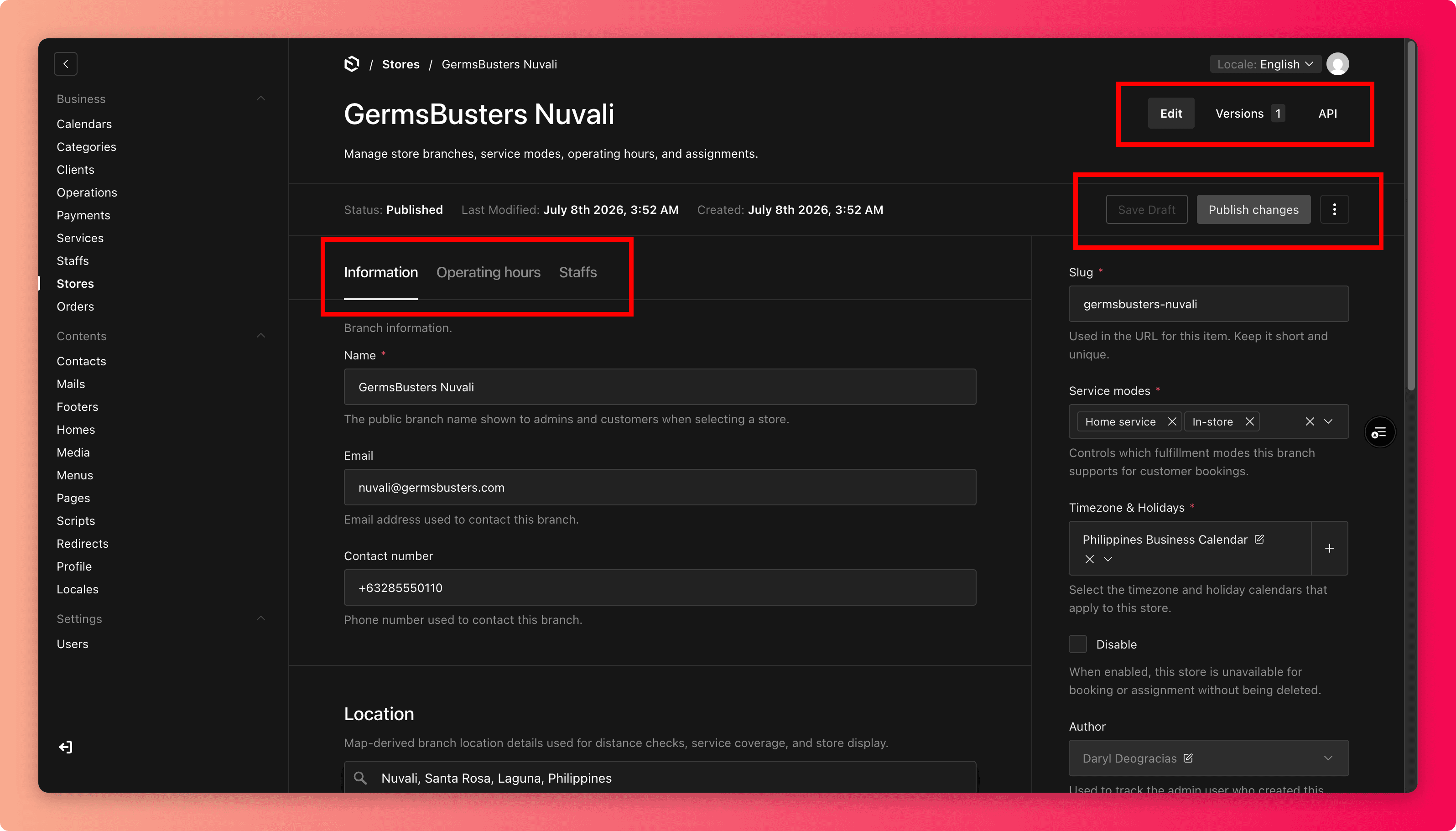
- Click an item to open its edit screen. Fields are grouped into tabs (for example a store has Information, Operating hours, and Staffs tabs).
- Saving controls are at the bottom or in the sidebar of the edit screen. Some areas have Save, others have Save draft and Publish. The difference matters, and it is explained in Save, Publish & Preview.
Search before you create
Before adding anything new, whether a page, a service, or an image, search the list first. Most "missing" items already exist, and duplicates confuse customers later.
What to read next
- Save, Publish & Preview covers the most important concept in the admin.
- Safe vs. Careful Actions explains what you can freely experiment with, and where to slow down.