
Calendars
Set the timezone stores run on and add holiday dates that block booking.
Calendars hold two things stores depend on: the timezone their schedule runs in, and holiday dates that can block booking. Each store points at a calendar, so one calendar can serve several branches that share the same holidays.
Timezone
The timezone is set once, when the calendar is created, by picking an area (for example Asia) and then a timezone (for example Asia/Manila). Every opening time, booking slot, and holiday for stores on this calendar is interpreted in that timezone.
Think twice before changing a timezone
Changing the timezone shifts the meaning of every store hour and booking slot attached to this calendar. Unless a store has physically moved regions, you almost never need to touch it.
Add a holiday closure
Open Calendars and pick the calendar the affected store uses. Check which stores share it, because a holiday here applies to all of them.
In Holidays, add an entry: a recognizable name ("Christmas Day"), the date, and whether it blocks bookings.
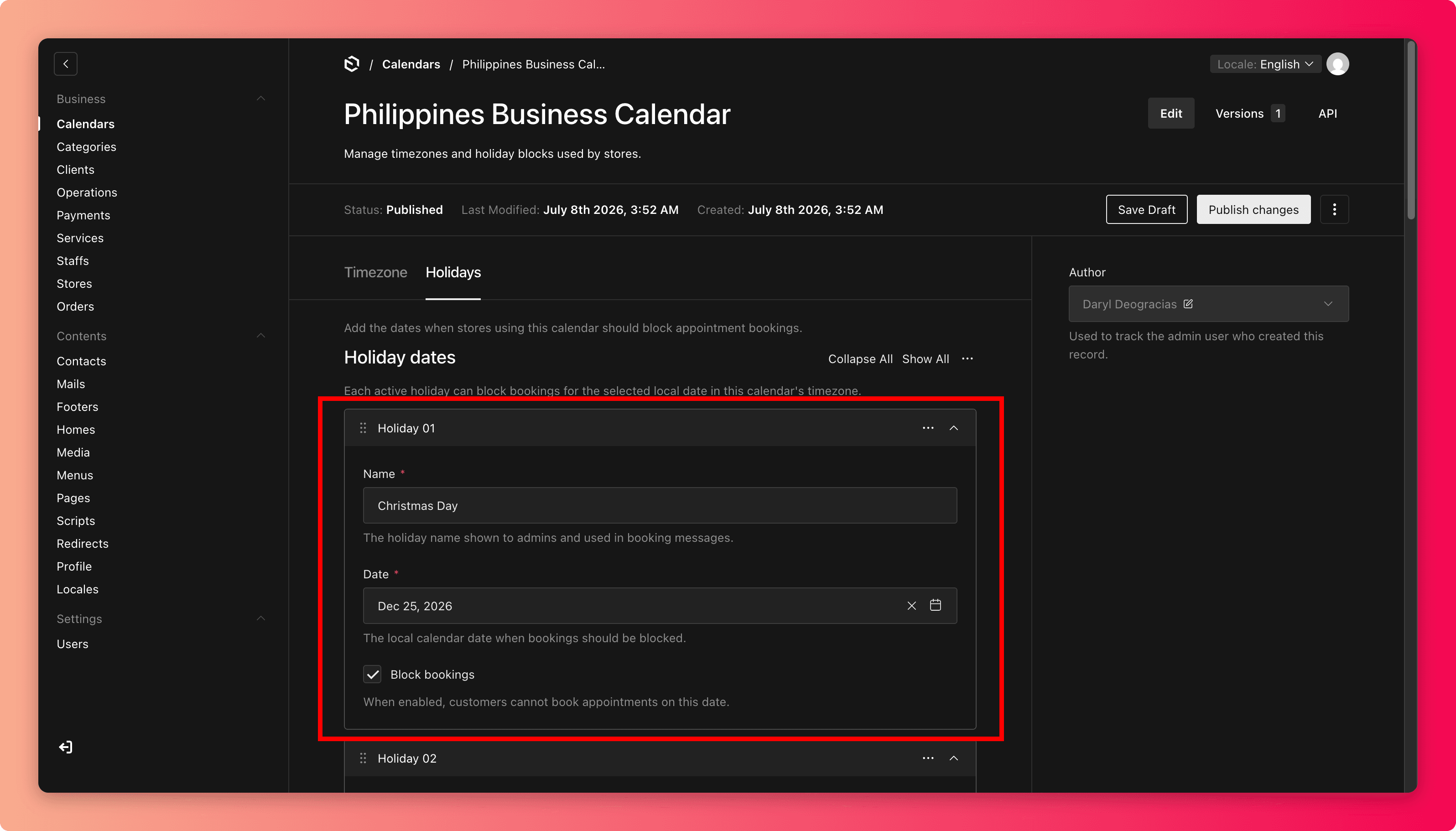
Save (publish if prompted), then try to book that date as a customer. The slots should be gone.
The "Block bookings" toggle
- On means customers cannot book that date. Use it for real closures.
- Off means the date is noted but booking continues. Use it for observances where you still operate.
The most common calendar mistake is adding the holiday but leaving this toggle off.
Common mistakes
- Adding holidays after customers have already booked the date. Add closures as early as you know them. If bookings already exist, contact those customers and reschedule their orders.
- Blocking a date on the wrong calendar, closing branches you did not mean to close.
- Leaving last year's one-off closures in place. Review the holiday list at the start of each year.
- Using a holiday to mark one staff member's absence. That belongs in Staff availability.