
Services
Manage what customers can book, including names, descriptions, options, prices, durations, and which stores offer each service.
Services are your offerings. A service's content appears in many places at once: service pages, category listings, the homepage, the booking flow, checkout, order summaries, and customer emails.
Services and variants
Every service has one or more variants. A variant is the concrete option a customer actually picks and pays for.
Service: Wash & Fold Variants: Regular (up to 8kg) at ₱499 for 90 minutes and Large (up to 15kg) at ₱799 for 120 minutes
The service carries the shared story: the name, description, images, and category. Each variant carries the bookable details:
| Variant field | What it controls |
|---|---|
| Name / description | What the customer sees when choosing this option |
| Pricing | Base price, currency, and optional discount. This is what customers are charged. |
| Duration | Length of the appointment in minutes. This shapes which time slots booking offers. |
| Margin duration before / after | Buffer minutes around the appointment for setup, travel, or cleanup. Customers never see these, but they stop back-to-back bookings from colliding. |
| Minimum required staff count | How many staff must be free for this option to be bookable |
| Disable variant | Hides this option from customers without deleting it |
Other fields worth understanding
- Store assignment is either Available on all stores or a hand-picked list. A service a store does not offer will never appear for that store's customers.
- Service mode is In-store or Home service. Home service asks the customer for an address and checks it against the store's service area.
- Category decides where the service appears when customers browse. See Categories.
- Slug is the service's web address, for example
/services/wash-and-fold. Changing it breaks existing links, so leave it alone once published. - Disable hides the whole service from customers without deleting anything. This is the right way to pause a service.
Add a new service
Search Services first to make sure it does not already exist. An old, disabled version may just need re-enabling.
Create the service with a customer-friendly name, a description that says what is included, and a clear photo. Write for customers, not the team: "Wash & Fold" beats "WF-STD".
Add at least one variant with its price, duration, and any margins or staff requirements.
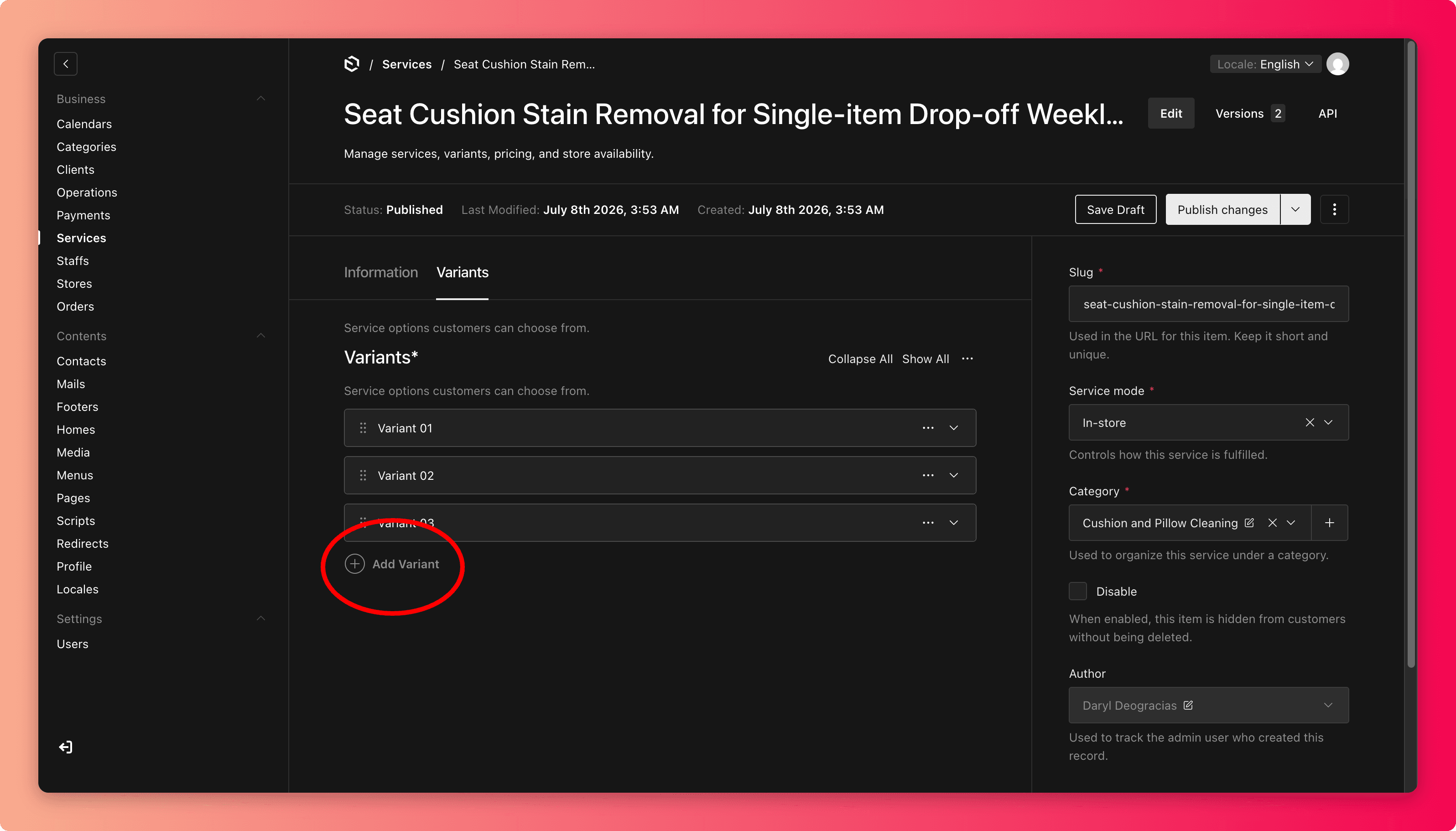
Set the store assignment, service mode, and category.
Save, then test it like a customer: open the service page and step through booking up to the final confirmation screen.
Change a price
Open the service, go to Variants, and find the right variant. Many price mistakes come from editing the right service but the wrong option.
Update the amount, and the discount if there is one. Confirm it is the approved figure.
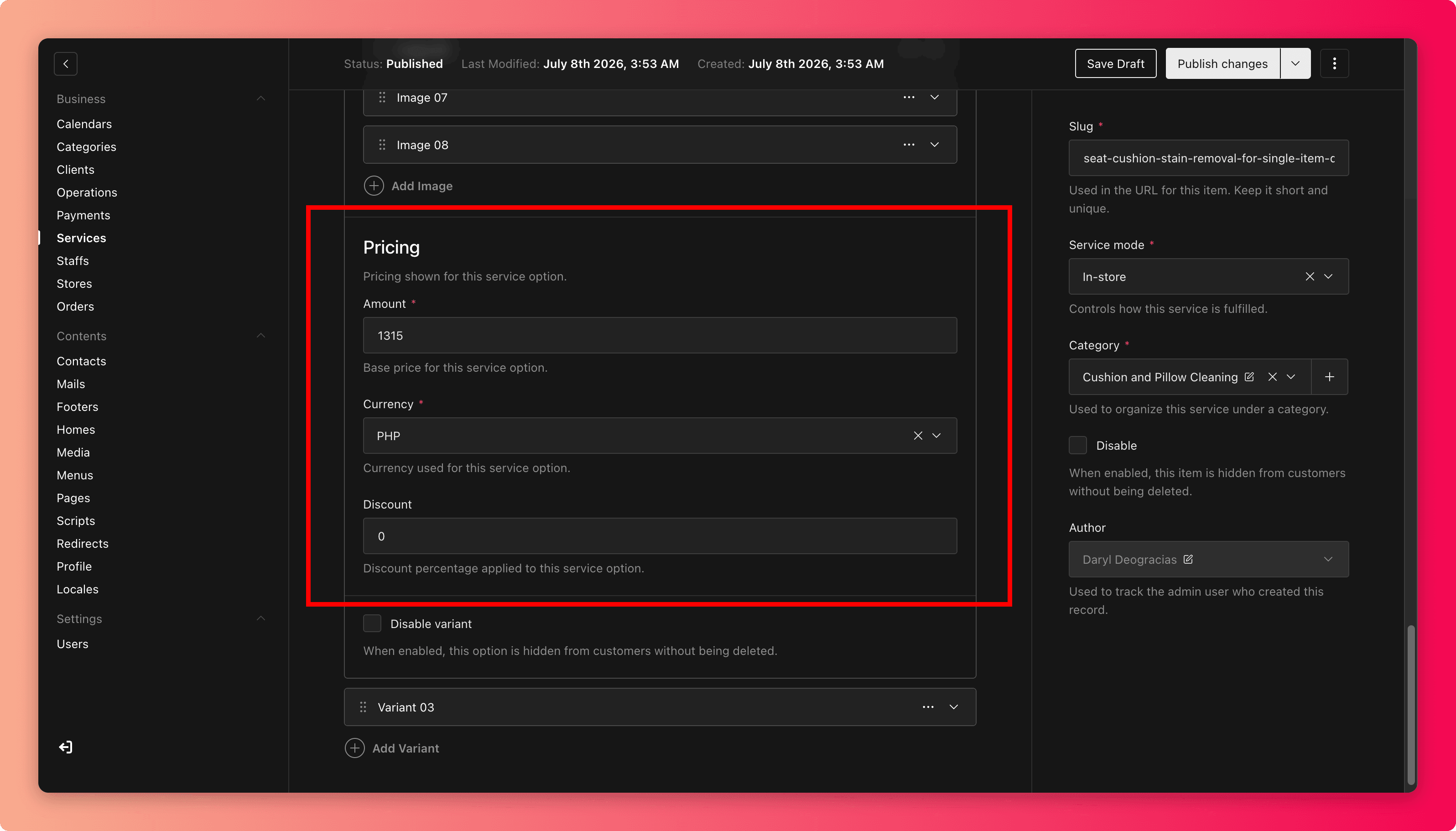
Save, then verify the new price on the service page and in the booking flow.
Prices go live on save
Customers can book at the new price within minutes. If you are preparing a future price change, wait until it should take effect. There is no way to schedule a price change in advance.
Common mistakes
- Creating a duplicate service instead of updating (or re-enabling) the existing one.
- Deleting a service to "pause" it. Use Disable instead, because deleted services lose their content permanently.
- Updating the price but not the description that still mentions the old price.
- Setting a duration that ignores travel or cleanup time. Use the margin fields for that rather than padding the visible duration.
- Renaming a service into internal shorthand that customers will not recognize in their order emails.