
Orders
Review bookings, understand order statuses, and update an order safely.
Orders holds every booking a customer has made. Each order records who booked, what service and option they chose, when the appointment is, which store fulfills it, the price, and its current status.
Orders go live when saved
There is no draft step here. Customers can see their order's status, and status changes can trigger customer emails. Always confirm you have the right order before changing anything.
What order statuses mean
| Status | Meaning | Typically set when... |
|---|---|---|
| Requested | The customer has booked; you have not confirmed yet | A new order arrives |
| Scheduled | Confirmed and on the calendar | You accept the booking |
| In progress | The service is happening now | Work starts |
| Completed | Finished successfully | Work is done |
| Canceled | Called off by you or the customer | A cancellation is agreed |
| Failed | Could not be fulfilled | Something went wrong (no-show, unable to serve) |
Customers can see this progression, and each status change can send them an email (the wording lives in Emails). Only move a status when it reflects reality.
Reading an order
An order has three main parts:
- Information shows the appointment time, the service and option booked, the price, the store, and (for home service) the customer's address and contact details.
- Timeline is a history of what has happened on this order.
- The sidebar shows who placed the order, the assigned staff, and the order status.
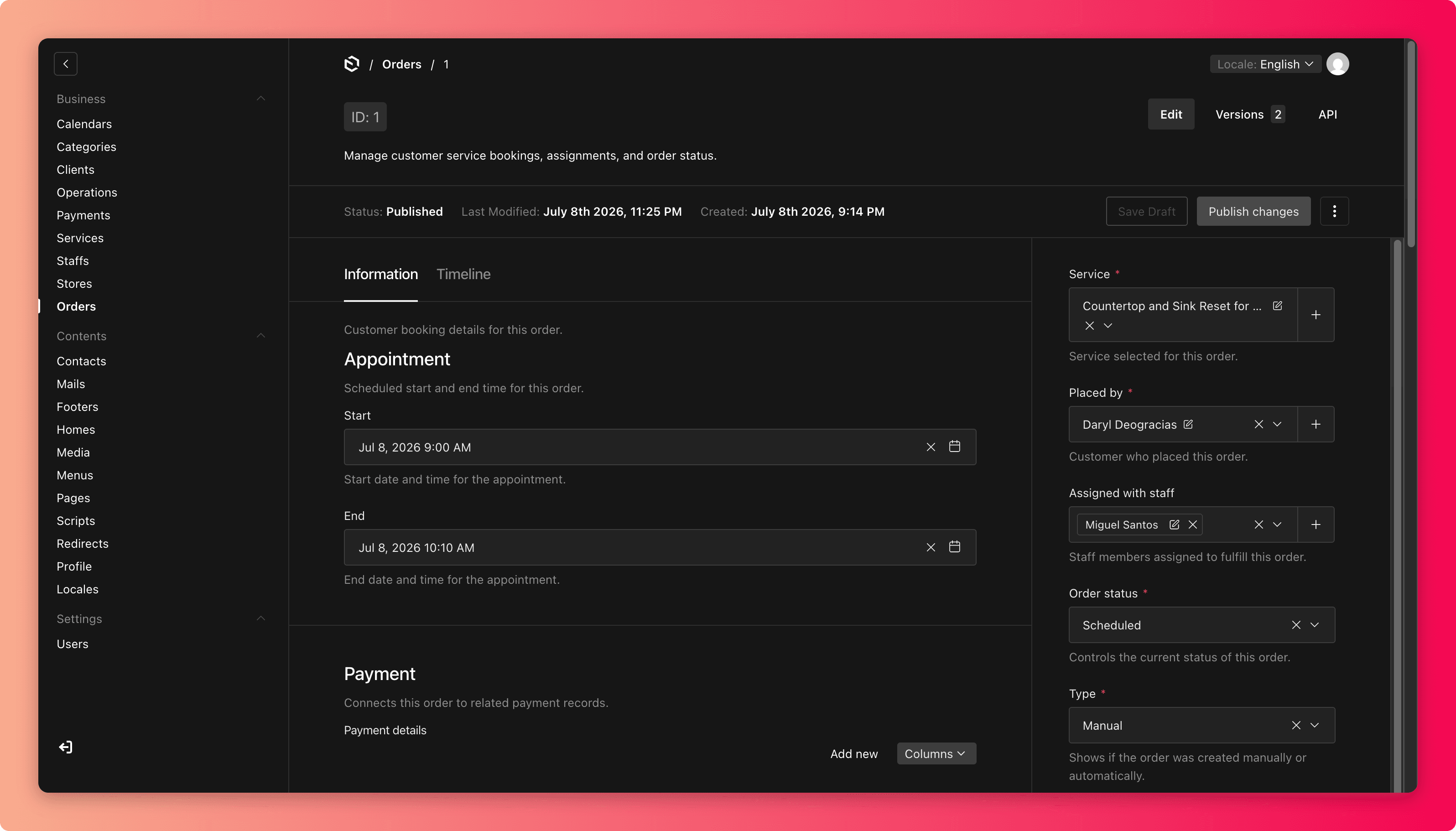
Most fields in an order are a record of what the customer booked. They are there to read, not to edit. Your day-to-day levers are the order status and the assigned staff.
Handle a new order
Open Orders (or click through from Incoming Orders on the dashboard) and open the new order. It will be in Requested.
Check the appointment time, the service and option, and the store. For home service orders, check that the customer's address is within your service area.
Assign staff using Assigned with staff. Glance at Staff Workload on the dashboard first if you are unsure who is free.
Change the status to Scheduled and save.
Common mistakes
- Editing the wrong order. Always match the customer name and appointment time first, not just the service.
- Marking an order Completed before the work is done, which can trigger a premature "completed" email to the customer.
- Canceling an order without agreeing it with the customer first.
- Forgetting to assign staff, so the job never appears on anyone's schedule.
Payments live separately
Money is tracked in the Payments area, linked to each order. Changing an order status does not mark it paid. See Payments & Refunds.