
Emails
Edit the subject lines and sender names on the emails the system sends to customers.
Mails controls the automatic emails the system sends. You edit the subject line and the sender name shown in the inbox for each message. The message bodies themselves are managed for you.
Which emails exist
| Group | Messages | Sent when... |
|---|---|---|
| Authentication | Email verification, User invitation, Magic link sign in, Password recovery, Email change confirmation, Reauthentication | A customer or team member signs up, signs in, or manages their account |
| Order status | Scheduled, In progress, Completed, Canceled, Failed | An order moves to that status (see Orders) |
There is also a single Sender email address used across messages.
Edit a subject or sender name
Open Mails and find the message under its group (Authentication or Order status).
Check the label so you know exactly which customer moment you are editing. "Completed" is the email a customer gets when their order finishes.
Update the subject line or sender name.
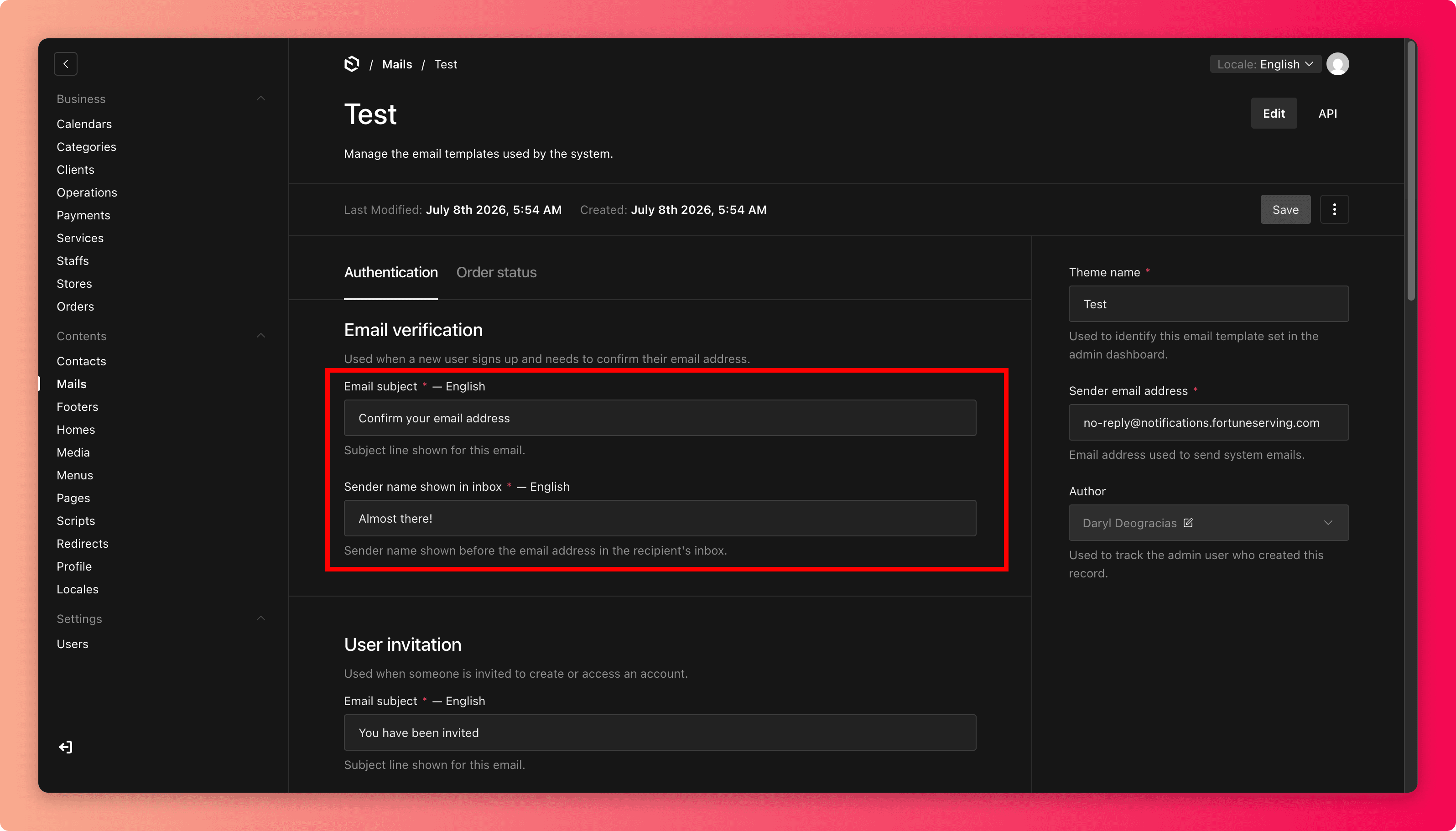
Save, then re-read it as an inbox line, for example FortuneServing: Your order is on its way. Would you recognize and trust it?
Writing good email lines
- Subjects should say what happened. "Your booking is confirmed" beats "Update from us".
- The sender name is your storefront in the inbox. Keep it the business name, consistently, because sudden changes make customers suspect spam.
- Never put private details (names, amounts, addresses) in a subject line.
Changing the sender email address
The sender address affects whether emails are trusted and delivered at all. Do not change it without checking with your developer or support contact first. An unverified address can send every customer email to spam.
Common mistakes
- Editing the wrong message. The "Canceled" subject appearing on completed orders is memorably bad, so match the label before typing.
- Seasonal subjects that outlive the season.
- Clever-but-vague subjects that customers skip, then claim they were never told.