
Payments & Refunds
Mark payments as paid, record how they were collected, and track refund requests.
Payments is your money record. Every payment is linked to an order and a customer, and shows the amount, whether it has been collected, and any refund activity.
This is a financial record
Changes here go live immediately and affect what the business believes it has been paid. Only mark a payment Paid when the money has actually been received, and only record refunds you have genuinely agreed to.
The key fields
| Field | What it means |
|---|---|
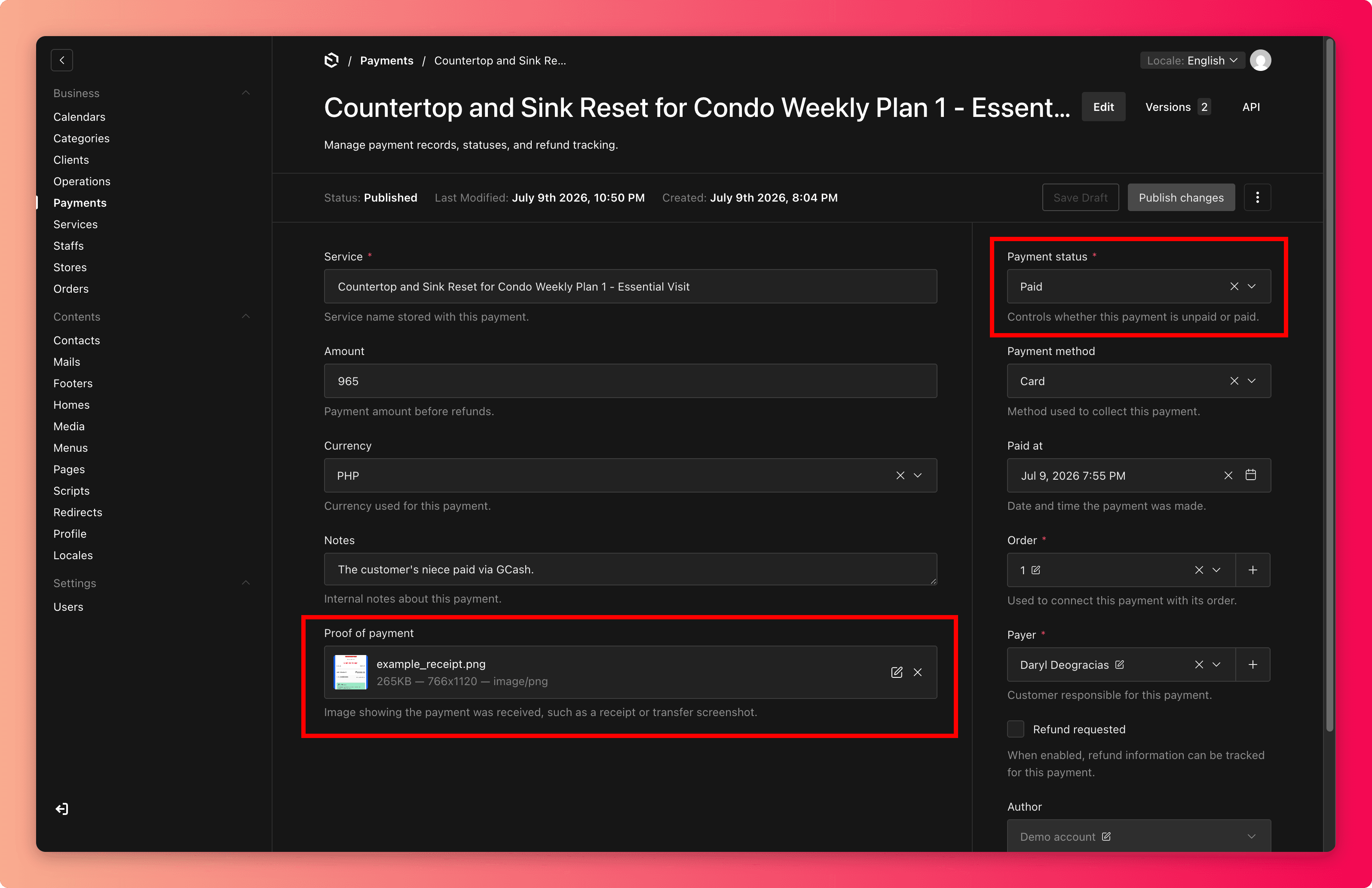
| Payment status | Unpaid or Paid. New payments start Unpaid. |
| Payment method | How the money was collected: Cash, Card, Bank transfer, or E-wallet. Appears once the payment is marked Paid. |
| Paid at | The date and time the money was actually received. Appears once the payment is marked Paid. |
| Proof of payment | An image that shows the money was received, such as a receipt or a bank transfer screenshot. Appears once the payment is marked Paid. Only PNG, JPEG, and WebP images are accepted. |
| Amount | The payment amount before any refund. |
| Notes | Internal notes about the payment, up to 500 characters. Customers do not see these. |
| Order / Payer | The order and customer this payment belongs to. Follow these links to confirm you have the right record. |
Mark a payment as paid
Find the payment. The easiest route is to open the order first and follow its Payment details link.
Confirm the amount matches what was actually collected.
Set Payment status to Paid and choose the Payment method.
Set Paid at to when the money was received, attach a Proof of payment image if you have one, and save.
Refunds and disputes
The Refund information section tracks a refund from request to resolution:
- Refund amount is how much is being refunded. It can be less than the full payment.
- Refund reason is one of: Requested by customer, Service cancellation, Service issue, Billing dispute, or Other.
- Refund notes are internal notes about what happened. Customers do not see these, but keep them factual and professional.
- Refund status moves from Requested to Approved or Rejected, and finally Resolved.
Record the refund when it is first requested, then update the status as it moves. This gives you a paper trail if a dispute comes back months later.
Recording is not transferring
Updating refund fields records the decision. It does not move money by itself. Make the actual refund through however the customer paid, then record it here.
Common mistakes
- Marking a payment Paid because the order is finished. Completed work and collected money are separate facts.
- Recording a refund against the wrong order when a customer has several bookings. Confirm the appointment date on the linked order.
- Leaving a refund in Requested forever. Close the loop: approve or reject, then mark it resolved.